
Keeping personal and work files stored on our computers safe from prying eyes is more important than ever. Whether you handle client contracts, family photos, or secret project ideas, one small slip can lead to big trouble. That’s where SecureDrive steps in. This free Windows tool creates private, encrypted storage spaces that work just like normal drives on your computer. No complicated setup, no high learning curve—just simple, strong protection for your most valuable data.
What is SecureDrive?
SecureDrive is a lightweight security program designed for Windows users who want to lock away sensitive information without slowing down their daily routine. It turns a single encrypted file on your hard drive into a virtual disk that you can access with a drive letter, such as Z: or X:.
When the drive is “mounted” (unlocked with your password), it behaves exactly like any other folder in Windows Explorer. You can drag and drop files, save documents straight from Word or Excel, or even run programs directly from it. Once you lock it again, the entire contents disappear and become unreadable gibberish to anyone without the correct password. The tool is completely free, small in size, and works on Windows 10, Windows 11, and Windows Server.
Key Features
SecureDrive shines because it balances strong security with everyday convenience. Here are the highlights:
- Encrypted Virtual Volumes: Every secure drive lives inside one .sdd container file. The data inside is protected by industry-standard encryption, so even if someone copies the file, they cannot open it without your password.
- Read-Only Mode: Want to share files safely? Mount the drive in read-only mode and others can view documents but cannot edit, delete, or add anything. This feature also blocks ransomware from encrypting your important archives.
- Multiple Drives at Once: Create as many separate vaults as you need—one for work, one for personal photos, one for tax records. Each has its own password and size limit.
- Seamless Windows Feel: No extra software windows get in the way. The mounted drive appears in “This PC” exactly like a USB stick or external hard drive.
- Smart Session Options: Choose whether the drive stays open after you close the program or automatically locks itself when you exit. Perfect for both convenience and extra caution.
- Portable Version Available: Take the entire program on a USB drive and use it on any compatible Windows PC without installing anything.
Because it runs with very little CPU power, even large files and deep folder structures open quickly.
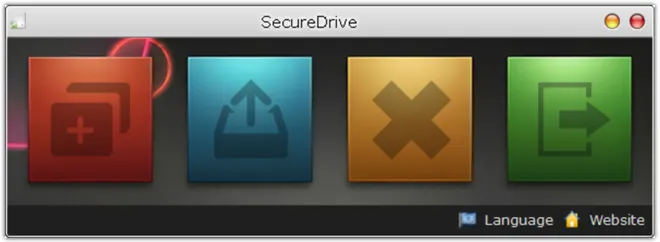
Getting Started
Getting started is surprisingly easy. Here’s a simple step-by-step guide:
1. Create Your First Secure Volume
Download and run SecureDrive (or use the portable ZIP). Click “Create a Secured Drive.” Pick a folder and name for your container file (it will end in .sdd). Type a strong password—remember, there is no recovery option. Set the maximum size (5 GB, 10 GB, or more), choose an unused drive letter, and click OK. The volume mounts instantly.
2. Open and Add Files
Your new drive letter now shows up in Windows Explorer. Copy, move, or create files inside it just like any normal folder. Applications can save directly to it.
3. Lock It When You’re Done
When you finish working, click “Dismount” in the SecureDrive window. The drive letter disappears immediately, and your data is safely locked inside the container file.
4. Mount Again Later
To reopen, click “Mount a Secured Drive,” locate the .sdd file, enter your password, and pick a drive letter. You can also enable read-only mode or auto-dismount on exit for added safety.
The whole process takes less than a minute once you try it the first time.
Benefits for Everyday Users
SecureDrive solves problems that many people face every day. First, it keeps data invisible. When the drive is dismounted, the container file looks like one ordinary file on your computer. No one browsing your hard drive will know there’s a hidden vault inside.
Second, it protects against common threats. If your laptop is stolen or a colleague borrows your PC, your files stay safe. The read-only option is especially useful for accountants, lawyers, or anyone who needs to share information without risking changes.
Third, it keeps your workflow smooth. Unlike some heavy security tools that slow your computer or require constant pop-ups, SecureDrive works quietly in the background. You can even run portable apps straight from the encrypted drive.
Finally, being freeware means there are no hidden costs or subscription traps. Students, freelancers, small business owners, and privacy-conscious individuals can all use it without spending a penny.
Conclusion
SecureDrive offers powerful encryption features for Windows users. With its encrypted virtual drives, read-only protection, and Windows-friendly design, it offers a practical way to keep sensitive files truly private. In just a few clicks you can create your own digital safe that opens and closes on your command. If you value your data and want an easy solution that actually fits into your daily life, give SecureDrive a try.
You can download SecureDrive from https://www.pdfzilla.com/securedrive.html.