
Have you ever tried to connect a new phone or laptop to your home WiFi, only to realize you forgot the password? Or maybe a friend visits and asks for your network details, but you cannot remember it? These moments happen to everyone. The good news is there is a simple, free tool that fixes this problem in seconds: Wise WiFi Password Viewer. It is a lightweight Windows program that shows every saved WiFi password on your computer with just one click. No tech skills needed, and it keeps everything private on your own PC.
What is Wise WiFi Password Viewer?
Wise WiFi Password Viewer is a small, free utility from the WiseCleaner team. It scans your Windows computer and lists all the wireless networks you have ever connected to. For each network, it reveals the network name (called an SSID) and the exact password. The entire tool is just 127 KB in size, so it downloads and runs instantly.
Unlike bulky programs or complicated settings menus, this viewer is portable. That means you do not even have to install it. Just download the file, double-click, and you are ready. It works on every modern Windows version – from Windows 7 right up to the latest Windows 11 – on both 32-bit and 64-bit systems. If you are still using Windows 7, you might need the free .NET Framework 4.8, but that is the only extra step.
The Everyday Problems It Solves
Think about how often WiFi passwords cause headaches. You change your router password for security, but then every device needs updating. Or you move to a new apartment and cannot recall the old office WiFi code when you need it for a work file. Guests arrive, and you spend ten minutes hunting through settings or calling your internet provider.
Even worse, some people reset their router just to get the default password printed on the box – but that disconnects every smart TV, printer, and game console in the house. Wise WiFi Password Viewer stops all this frustration. It pulls the passwords straight from the secure spots Windows already stores them. No guessing, no resetting, and no asking your tech-savvy nephew for help.
Key Features
The tool shines because it keeps things simple and powerful at the same time. Here are the main features:
- One-Click Recovery: Click “Scan Now” and watch the full list appear in under 30 seconds. Every saved network shows up with its password clearly displayed.
- Clean and Private: The program never sends your data anywhere. It reads only the local wireless profiles already saved on your computer. No cloud uploads, no internet connection required while using it.
- Export Options: Need to keep a backup? Save the entire list as a plain text (.TXT) or spreadsheet (.CSV) file. Great for moving to a new PC or sharing safely with family.
- No Ads or Junk: It is completely free and 100% clean – no hidden toolbars, no pop-up ads, and no sneaky software.
- Easy-to-Read Interface: The window shows network names like “Home_Office_5G” or “Starbucks_Guest” with passwords hidden behind dots until you want to see them.
Because it runs locally and asks for administrator rights only once, it feels safe and respectful of your privacy.
Getting Started
Using Wise WiFi Password Viewer could not be easier. It is a portable application and does not require any installation. The program shows a small window without anything in its list. The user has to click on the “Search” button to initiate the scan.
It checks your Windows settings, lists all the WiFi networks that you have ever joined in your life from this computer. In the list you have information for all networks such as Wi-Fi Name (SSID), password in plain-text, authentication protocol used (such as WPA3-Personal), encryption method used (such as AES), and the network type.
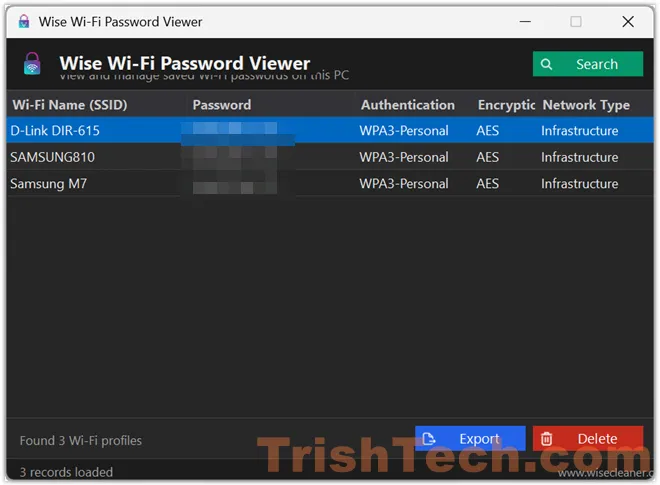
You can copy the passwords from this list or export the entire list to a file to be used later. The list is exported in plain text file so it does not require any special program to access it later. There is also option to delete the passwords if desired.
That is it. Most users finish in less than a minute. You can then type the password into your phone, tablet, or friend’s laptop without any stress.
Why Not Use Built-in Windows Tools?
Windows does let you view passwords, but the process is hidden. You must open Command Prompt/Terminal, type long commands like netsh wlan show profile name=SSID key=clear, where SSID is replaced by the Wi-Fi network name, and copy results carefully. One wrong letter and it fails. Wise WiFi Password Viewer skips all that typing and guessing. It gives you the same information in a neat list with zero commands. For most people, the one-click method is faster, safer, and far less stressful.
Conclusion
In a world full of smart devices and multiple networks, remembering every WiFi password is nearly impossible. Wise WiFi Password Viewer solves this common headache with speed, simplicity, and complete privacy. It is free, tiny, portable, and works on almost every Windows computer. Whether you need to connect a new gadget, help a guest, or just keep a backup of your networks, this tool does the job perfectly.
You can download Wise WiFi Password Viewer from https://www.wisecleaner.com/wise-wifi-password-viewer.html.