
Tired of your hard drive filling up with mysterious files you never asked for? Many Windows users watch their free space disappear even after uninstalling programs. The silently space hoarding culprit is often a hidden folder called C:\Windows\Installer. It quietly stores old .msi and .msp files that Windows no longer needs. InstallerClean offers a simple, safe fix. This free open-source tool scans that folder, finds the junk, and lets you remove it without breaking your system.
What Is InstallerClean?
InstallerClean is a lightweight Windows utility designed to reclaim disk space by removing orphaned installer files. Unlike generic cleaners that might delete important files by mistake, this tool talks directly to Windows’ own Installer database. It only targets files that Microsoft’s own system marks as unnecessary.
InstallerClean is completely open-source. Anyone can check the code, suggest improvements, or even build it themselves. It comes in both a friendly graphical version and a command-line option for advanced users. Best of all, it requires no internet connection after download and collects zero personal data.
Why the Windows Installer Folder Becomes a Problem
Every time you install or update software that uses Microsoft’s Installer technology—think Office apps, Adobe products, or many enterprise tools—Windows stores the original setup files and patches in that hidden folder. Over months or years, old patches pile up. Superseded updates stay behind even after newer versions take over.
The result? Some users discover 20 to 50 GB of dead weight. Heavy users of design software have seen over 100 GB. These are not temporary files that regenerate. They are genuine leftovers that Windows forgot to clean. Manual deletion is risky because you might remove something a future repair needs. InstallerClean solves this exact headache.
Key Features of InstallerClean
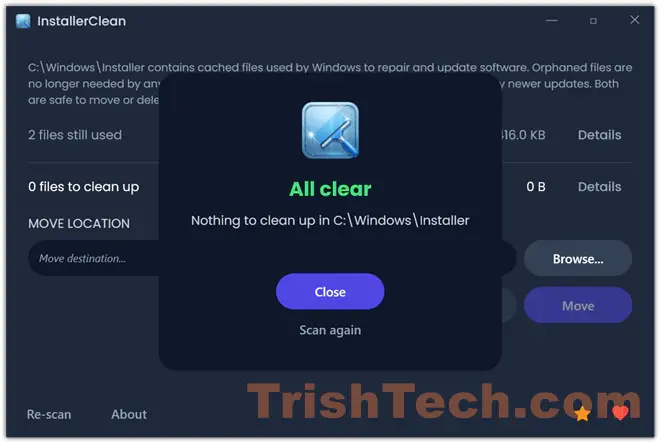
InstallerClean shines with thoughtful safety features. It offers two removal choices: send files straight to the Recycle Bin for easy recovery, or move them to a folder you choose first. A detailed list shows every file’s name, size, product it belongs to, and the exact reason it can be removed.
It also detects superseded patches—especially useful for Adobe users, where older tools often fall short. The app warns you about pending reboots that could affect scan accuracy. After cleanup, it removes any empty subfolders left behind. The modern dark-themed interface feels fresh and easy to navigate, unlike some older utilities.
For power users, a tiny command-line companion lets you automate scans and cleanups in scripts. No telemetry, no ads, and it runs fine as a portable app—no installation required.
How InstallerClean Works Under the Hood
The magic happens through Windows Installer COM interfaces. The tool asks Windows which products and patches are still installed. It checks patch status—applied, superseded, or obsolete—using official Microsoft calls like MsiEnumProductsEx and MsiGetPatchInfoEx.
Only files that Windows itself says are no longer referenced get flagged for removal. If the database is incomplete, InstallerClean falls back to the registry but never removes anything doubtful. This careful approach keeps your PC stable while freeing space.
Step-by-Step: Using InstallerClean
- Launch the program. It scans automatically and shows a clear list of removable files with sizes and reasons.
- Review the list. Click any file for extra details like product name and digital signature.
- Choose Delete (to Recycle Bin) or Move (to a safe folder).
- Confirm and watch the space return instantly.
The whole process usually takes just a few minutes. After cleanup, you can check Disk Properties to see the difference.
Command-Line Interface
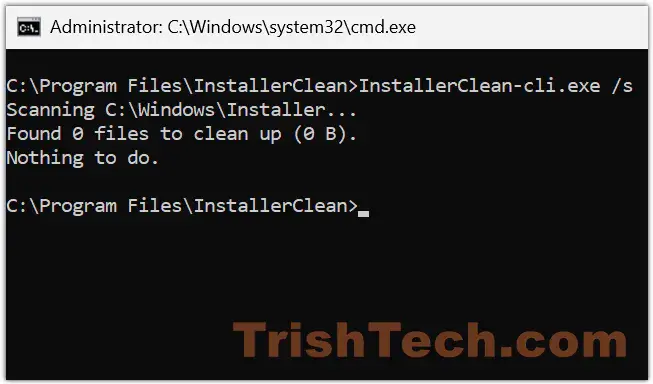
Advanced users love the CLI mode. Run “installerclean-cli /s” to scan only, or “/d” to delete safely. You can schedule weekly cleanups with Task Scheduler or include it in maintenance scripts. Everything stays consistent with the GUI, so results match exactly.
The CLI version of the application is available only when you install InstallerClean on your system. You will find it (InstallerClean-cli.exe) in the same folder as InstallerClean.exe (GUI app). The CLI version only works in elevated command prompt/Terminal.
Conclusion
InstallerClean is a smart, no-nonsense solution for anyone tired of watching their drive space vanish. It turns a confusing hidden folder into manageable, reclaimable space while keeping your system completely safe. Whether you are a casual user frustrated by low storage or a system admin managing fleets of PCs, this tool makes cleanup effortless and reliable.
You can download InstallerClean from https://github.com/no-faff/InstallerClean.